FastFTP360

A fast FTP server for homebrew Xbox 360 consoles, with built-in network and disk tests.
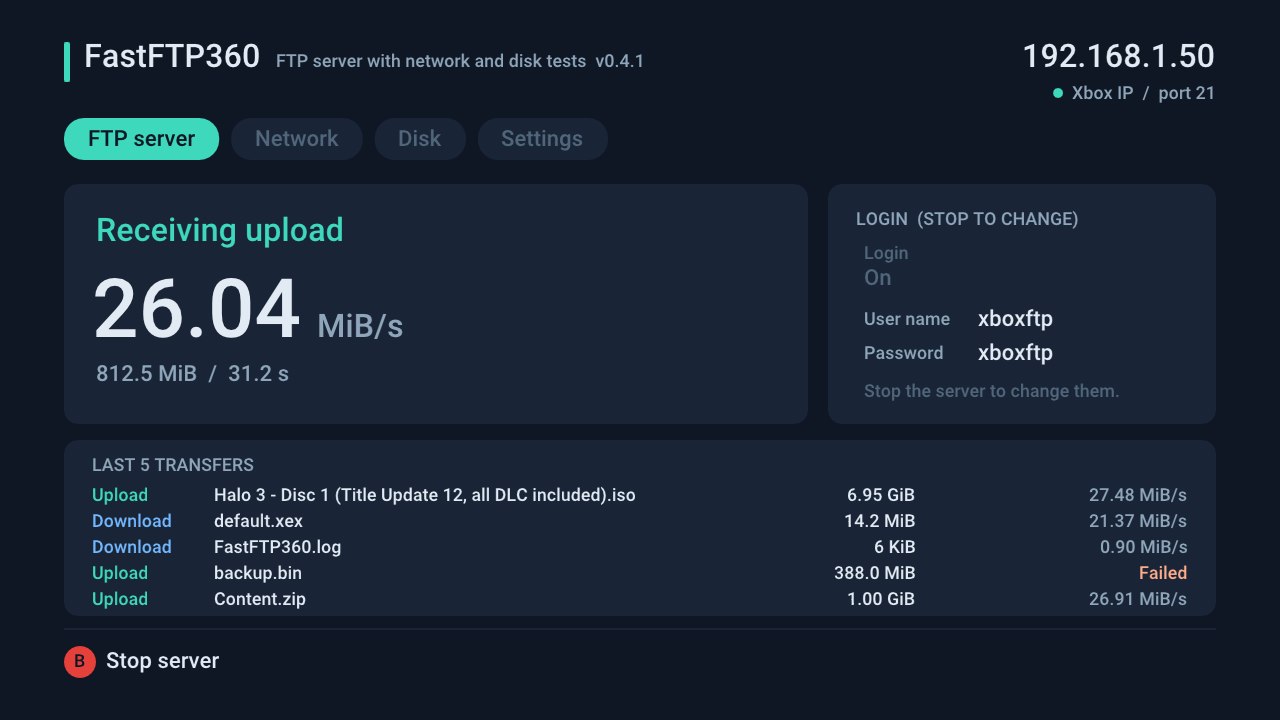
FastFTP360 moves files between your PC and the Xbox’s internal drive or USB storage using any regular FTP client, such as FileZilla. It reads and writes the disk while the network transfer is running, instead of one after the other. With a USB Ethernet adapter, uploads to the Xbox have reached about 27.5 MiB/s, where Aurora’s built-in FTP managed about 19.5 MiB/s on the same console.
- Works like Aurora’s FTP: the same folder names (
Hdd1,Usb0,Game…), so your paths and bookmarks keep working. - Your own login:
xboxftp/xboxftpby default. Change it with the Xbox keyboard or inFastFTP360.ini. - Last 5 transfers on screen with file name, size and speed. Everything is also written to
FastFTP360.log. - Network test and disk test built in, to find out whether the network, the drive or the FTP client is the slow part.
- FastFTP360 upload to the internal drive
- about 27.5 MiB/s
- Aurora's built-in FTP, same console
- about 19.5 MiB/s
- Network test (RAM to RAM)
- about 27.7 MiB/s
- Buffers per transfer, disk and network overlapped
- 2 × 1 MiB
Best with NetUsb360. FastFTP360 was made alongside NetUsb360 1.1 (released as CUsbEnet 1.1), a USB Ethernet driver plugin for the Xbox 360. Together they’re the fastest way we know of to copy files to an Xbox 360 over FTP. All the speeds on this page were measured with a TP-Link UE306 adapter on that driver. FastFTP360 also works over the console’s built-in network port.
FastFTP360 is experimental homebrew. Read Safety before using it on files you care about.
Download
Section titled “Download”What's new in version 0.4.1
A standalone FTP server for homebrew Xbox 360 consoles, with a RAM network benchmark and a disk test. Built from main at commit 0854f3d.
What's new
0.4.1 replaces the 0.4.0 tag, which pointed at an earlier commit. Everything below is new since 0.3.0.
- Your own FTP login. On the FTP server tab, press Y to type a user name and password with the Xbox keyboard. The login is saved in
FastFTP.ininext to the XEX, which you can also edit on a PC. The default isxboxftp/xboxftp, and D-pad on the FTP tab switches the login off. - Opens on the FTP server tab. The tabs are FTP server, Network, Disk and Settings.
- Last 5 transfers on the FTP tab, with file name, size and speed.
- Log file
FastFTP.lognext to the XEX: logins (including wrong ones), uploads and downloads with path and speed, deletes, renames, new folders, and server start and stop. - Renamed to FastFTP:
FastFTP.xexandFastFTP-PC.exereplace the NetBench360 files. New look, with a new logo and a README with screenshots of every tab. - Settings tab for the advanced options: socket buffers, worker CPU and drawing during transfers. The everyday tabs only show what a normal user needs.
- New Xbox screen built with Dear ImGui. Drawing pauses during transfers by default, because live drawing during Xbox sends crashed the console in early tests.
- Folders named like Aurora's FTP:
Game,Hdd1,HddX,SysExt,System,Usb0-Usb2,USBMU0-USBMU2,USBMUCache0-USBMUCache2. Only drives that are present are listed.
Uploads to the Xbox have reached about 27.5 MiB/s with a TP-Link UE306 adapter. That compares with about 19.5 MiB/s for Aurora's built-in FTP.
Downloads
| File | Runs on |
|---|---|
FastFTP.xex |
Xbox 360 (retail, DEVKIT_ONLY=0). Copy it to its own folder, for example Hdd1:\Apps\FastFTP\, and start it from Aurora or XeXMenu. It is not a launch.ini plugin. |
FastFTP-PC.exe |
Windows companion for the RAM network benchmark only. Not needed for FTP. |
FastFTP-0.4.1.zip |
Both files above. |
SHA-256:
8A8F86666078EA8DE1ADC160A96F2ECFEE703AC62B0B749D68E4253429730554  FastFTP.xex
5B16EE0180402F97FE7AB7917AB37064FDFBBB4890ABC5289FB48E3282479CF0  FastFTP-PC.exe
31B1434628D4A45BE4618D3C634A5301EE368E73D275510164CFE9E1CBA2F8E3  FastFTP-0.4.1.zip
Known limits
- Plain FTP in passive mode only. The login and the files are not encrypted, so use it only on a trusted LAN.
- Passed 29 host FTP checks and 53 protocol checks. The new login keyboard, log file, transfer list and Settings tab have not run on a console yet.
- If you used an earlier build, delete the old
NetBench360.xexand useFastFTP.xex.
Quick start
Section titled “Quick start”You need a console that runs homebrew (XEX) applications, a working network connection, and a PC on the same home network. If you use a USB Ethernet adapter, keep its driver loaded as usual. For the speeds shown here, use NetUsb360 (measured with release 1.1, published as CUsbEnet 1.1).
-
Download
FastFTP360-<version>.zipfrom the Releases page (the download button above). -
Copy
FastFTP360.xexto its own folder on the Xbox, for exampleHdd1:\Apps\FastFTP360\. -
Start it from Aurora, XeXMenu or your usual launcher. Do not add it to
launch.ini: it is an app, not a plugin. -
The app opens on the FTP server tab. Press A to start the server.
-
In your FTP client, connect with:
Setting Value Host The IP address shown at the top right of the Xbox screen Port 21Protocol Plain FTP (no TLS) Transfer mode Passive User name / password xboxftp/xboxftp -
When you are done, press B to stop the server, then Back to exit to the dashboard.
FastFTP360-PC.exe in the zip is only for the network test. You don’t need it for FTP.
Documentation
Section titled “Documentation”License
Section titled “License”MIT, see LICENSE. Xbox 360 SDK components are not included and keep their own terms. This project is not affiliated with Microsoft.