NetDisc360
Play your whole Xbox 360 library from your PC or NAS. Every game shows up in Aurora as if it were installed, without filling your Xbox’s hard drive.
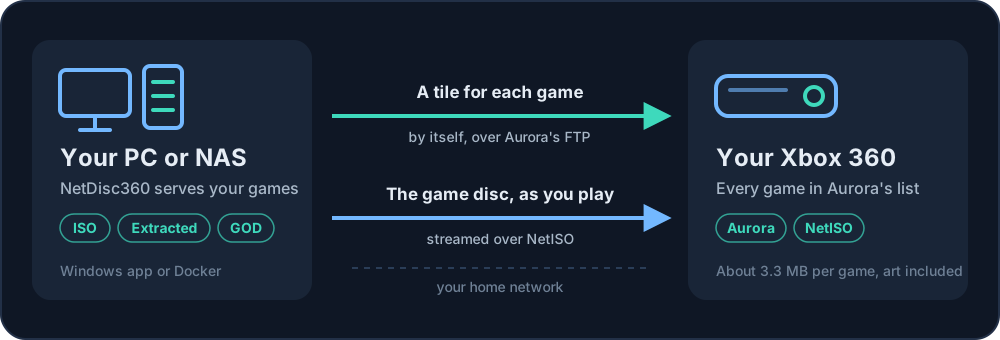
Keep your games on your PC or NAS and play them on your Xbox 360 just like installed games. Each one appears in Aurora with its name, cover art, title updates and DLC; pick it and it starts.
- Game reads with a gigabit USB network adapter (up to)
- about 26 MB/s
- NetISO on its own
- about 7 MB/s
- Per game on the console's drive
- about 3.3 MB
- Games on a 20 GB drive
- about 3,700
What's new in version 1.0.0
The first release. Play your whole Xbox 360 library from your PC or NAS: every game shows up in Aurora as if it were installed, without filling your Xbox's hard drive.
- Your Xbox's drive stays free. Each game takes about 3.3 MB on the console (a small launcher and Aurora's cover art), so even a 20 GB drive holds about 3,700 games.
- Set it up once. Start NetDisc360, choose your game folders, and new games show up in Aurora by themselves. It can start with Windows, and on a NAS it runs in Docker.
- Every console in the house. Several Xboxes can play from the same library at the same time, and the dashboard shows what each one is playing.
- Every kind of game copy. ISOs, extracted games and Games on Demand, from as many folders as you like. Nothing to convert.
- Multi-disc games just work. When a game asks for its next disc, NetDisc360 puts it in for you, and a game with an install disc, like GTA V, offers to install it first.
- Feels like the real thing. A loading screen you can cancel with B, a clear message when something is wrong, and the Guide keeps working in your games.
- Faster than the disc. With a gigabit USB adapter and UsbNet360, games read at up to about 26 MB/s.
Downloads
| File | What it is |
|---|---|
NetDisc360.exe |
The server for Windows 10 or 11. One file, nothing to install; its dashboard opens in your browser. |
NetIsoTiles.xex |
The DashLaunch plugin that starts games from their Aurora tiles. Load it next to NetISO.xex. |
NetISO-Sync.zip |
Only if you keep another NetISO server: the console app that makes the game folders. |
On Linux or a NAS, use the Docker image ghcr.io/marcusisdahl/netdisc360 (x86-64 and ARM64).
You also need NetISO.xex 1.0 by cOz, which can't be included here: take it from Nova+NetISO-Aurora0.7b.zip on ConsoleMods' NetISO page.
Getting started: the Quick start takes five steps, and the Install guide goes through each one.
Updating: later versions install from the dashboard (Settings > Updates). When NetIsoTiles.xex changes, the release notes say so, since that file is copied to the USB drive by hand.
SHA-256:
270DA6BBCF53C72266EDA65BA3CF6AB1DC60562791DA1EAE5C6F3FCF47C929A4  NetDisc360.exe
DF8EEA9B8D33351A89C0259CD6292813AFE1E655AA45DF6A920114901950AD0E  NetIsoTiles.xex
17DED2C87CEA24A280812ECFAF4098655EAF02353012427EF50736ED3D97452A  NetISO-Sync.zip
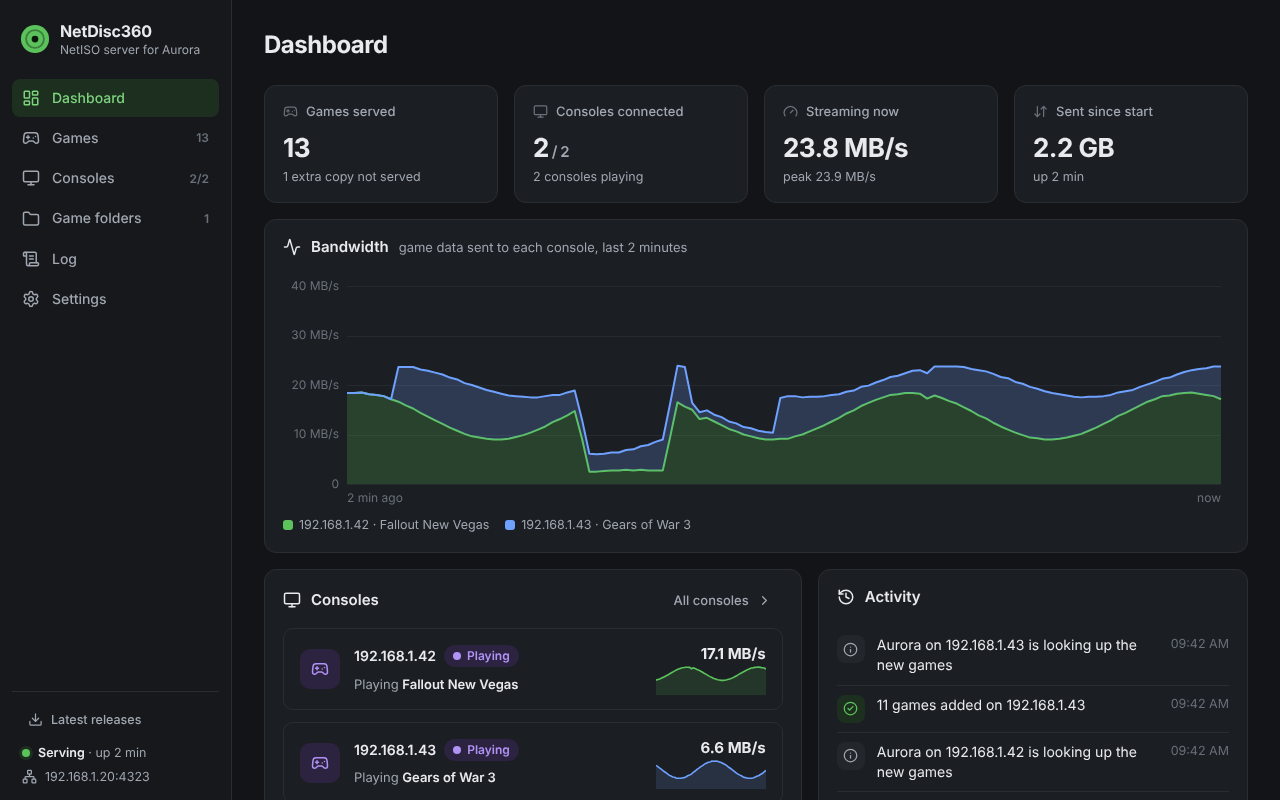
The dashboard on your PC or NAS: your games, every console and what it’s playing, and how fast each game streams.
Why NetDisc360
Section titled “Why NetDisc360”- Your Xbox’s drive stays free. The games stay on your PC or NAS. The console keeps only a small launcher and Aurora’s cover art for each one (about 3.3 MB in all), so even a 20 GB drive holds about 3,700 games, and 2,300 games take about 7.5 GB instead of many terabytes. See How many games fit.
- Set it up once. Start NetDisc360 on your PC, choose your game folders, and that’s it. New games show up in Aurora by themselves and removed ones disappear. It can start with Windows, and on a NAS it runs in Docker.
- Every console in the house. Several Xboxes can play from the same library at the same time, and the dashboard shows what each one is playing.
- Every kind of game copy. ISOs, extracted games and Games on Demand, from as many folders as you like. Nothing to convert or copy.
- Multi-disc games just work. Each disc gets its own tile, and when a game asks for its next disc, NetDisc360 puts it in for you. A game with an install disc, like GTA V, offers to install it first.
- Feels like the real thing. A loading screen you can cancel with B, a clear message when something is wrong, and the Guide keeps working in your games.
- Faster than the disc. With a gigabit USB network adapter, games read at up to about 26 MB/s, where the console’s own DVD drive manages about 16 MB/s at best and NetISO on its own about 7 MB/s.
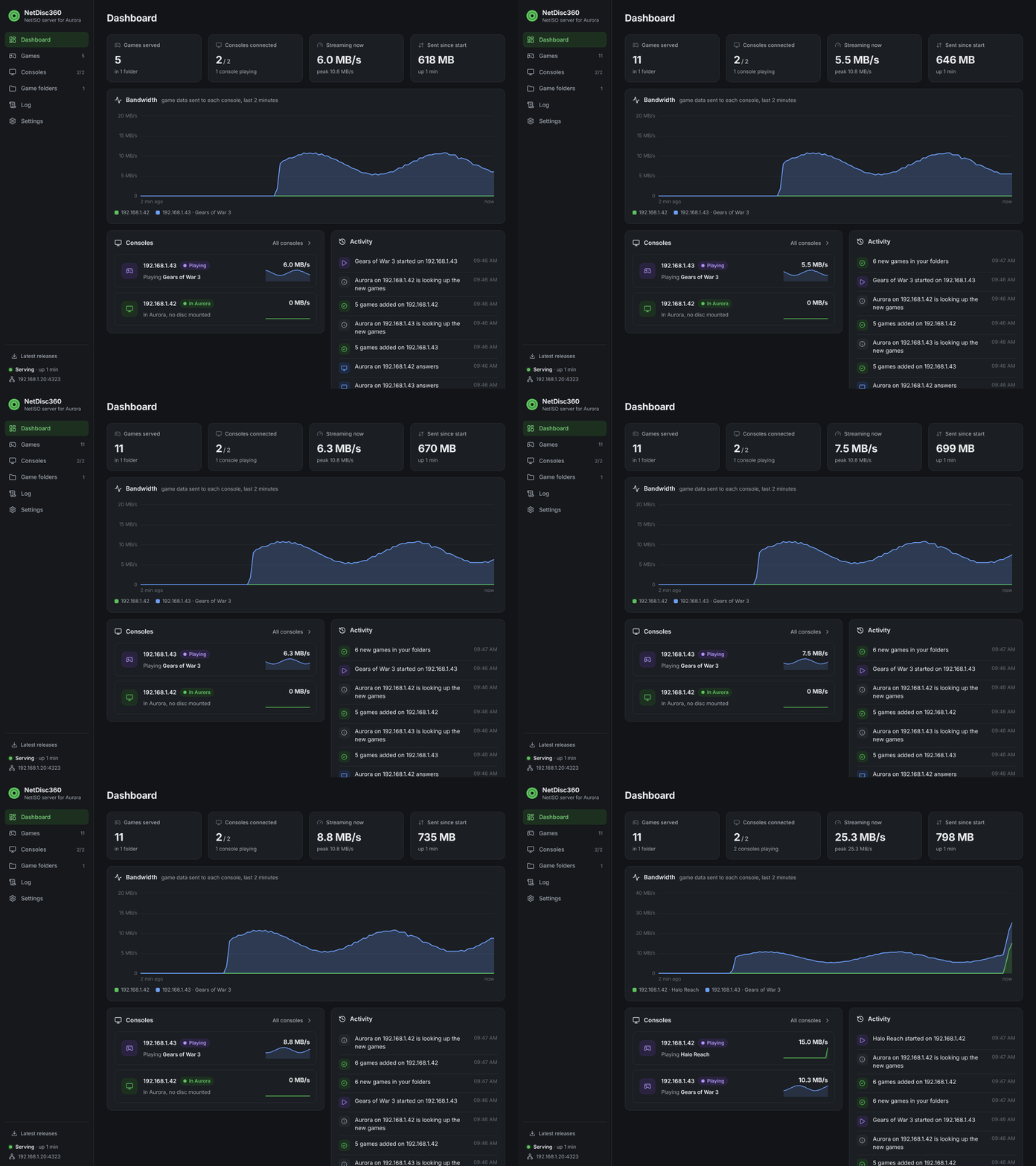

In action: two consoles get their games and play at the same time (top), and a game starts on the Xbox (bottom).
For the homebrew crowd
Section titled “For the homebrew crowd”NetDisc360 is an open-source NetISO server that replaces netiso-srv, for any modded 360 with DashLaunch and Aurora: RGH, JTAG, or a stock console with BadUpdate or ABadAvatar. Extracted games and GOD packages are served as virtual discs, so nothing gets converted to ISO. Each game gets a small launcher XEX with the game’s own Title ID and Media ID, so Aurora scans it as the real game and fetches its art, title updates and DLC itself. A DashLaunch plugin patches NetISO.xex in memory: it stops NetISO from killing the Guide, lifts its read loop from 4 KB per request to 64 KB or more with a bigger receive buffer, and answers a game’s XSwapDisc by mounting the other disc. One exe for Windows with a web dashboard, or a Docker image for Linux and NAS. How it works has the details.
Best with NetUsb360. It makes a gigabit USB network adapter work on the Xbox, whose own network port is 100 Mbit/s, at most about 12 MB/s. See Speed and More Xbox 360 homebrew.
Quick start
Section titled “Quick start”You need a modded Xbox 360 with DashLaunch and Aurora, the NetISO plugin (NetISO.xex 1.0, from ConsoleMods), and a Windows PC or a NAS with your games on the same network. What you need links to each of them.
-
Download
NetDisc360.exeandNetIsoTiles.xexfrom the Releases page. -
Copy
NetISO.xexandNetIsoTiles.xexto your USB drive, add a text fileNetISO.xex.txtnext to them with your PC’s IP address in it, and load both plugins inlaunch.ini:[Plugins]plugin1 = Usb:\NetISO.xexplugin2 = Usb:\NetIsoTiles.xex -
In Aurora’s settings, turn on the FTP server and add the scan path
Hdd1:\NetISOwith depth 1. -
On the PC, start
NetDisc360.exeand add your game folders on the dashboard that opens in your browser. On Linux or a NAS, run it in Docker instead and openhttp://<its address>:8360:Terminal window mkdir -p ~/netdisc && sudo chown 1000:1000 ~/netdiscdocker run -d --name netdisc --network host --restart unless-stopped \-v /path/to/games:/games:ro -v ~/netdisc:/config \-e NETDISC_WEB_PASSWORD=<a password> ghcr.io/marcusisdahl/netdisc360 -
Reboot the console. Within a minute or two your games show up in Aurora’s game list. Pick one and play.
Install goes through each step in detail, and Docker has every setting. To load games as fast as your network allows, see Speed.
More Xbox 360 homebrew
Section titled “More Xbox 360 homebrew”Two companion projects make NetDisc360 faster and the console easier to manage. The dashboard’s Latest releases links to the newest version of all three.
NetUsb360: a faster network for your Xbox
Section titled “NetUsb360: a faster network for your Xbox”The Xbox 360’s own network port is 100 Mbit/s. NetUsb360 is a DashLaunch plugin that lets the console use a gigabit USB Ethernet adapter instead (ASIX AX88179 or Realtek based, such as the TP-Link UE306), so games over NetISO load at about 26 MB/s and FTP to the console reaches about 29 MiB/s. It is plugin1 in the launch.ini in the install guide; plug the adapter in instead of the network cable.
NetUsb360 is our faster fork of CUsbEnet by proferabg, which brought the USB Ethernet driver from early Xbox 360 development kits to homebrew consoles. The fork adds bigger and batched receive transfers, an ACK-batching build and TP-Link UE300 support. Coming from CUsbEnet? Put NetUsb360.xex in its place in launch.ini, and don’t load both.
FastFTP360: copy files to and from your Xbox, fast
Section titled “FastFTP360: copy files to and from your Xbox, fast”A fast FTP server app for the console, for games, saves and other files: about 27 MiB/s, where Aurora’s own FTP managed about 19.5 MiB/s on the same console. It uses the same folder names and login as Aurora’s FTP. Start it from Aurora when you need it; NetDisc360 keeps using Aurora’s own FTP, which runs whenever Aurora is open.
More on github.com/marcusisdahl.
Documentation
Section titled “Documentation”The NetDisc360 docs cover installing, Docker, playing, speed, troubleshooting, updates, security and how it all works.
NetDisc360 is MIT licensed. Xbox and Xbox 360 are trademarks of Microsoft. This project is not affiliated with Microsoft, cOz or Team Phoenix. Use it only with games you own.