Install
Before you start, check What you need. To run the server on Linux or a NAS, set up the console as below and then see Docker.
1. Set up the console
Section titled “1. Set up the console”-
Copy the plugins to the root of your USB drive (the one DashLaunch reads
launch.inifrom):Usb:\launch.iniNetISO.xex <- from ConsoleMods' NetISO kit, see What you needNetISO.xex.txt <- you make this one in step 2NetIsoTiles.xexNetIsoTiles.ini <- optional, see SpeedNetUsb360.xex <- optional, see More Xbox 360 homebrewSee What you need, Speed and More Xbox 360 homebrew.
-
Tell NetISO where your PC is. Make a text file
NetISO.xex.txtnext toNetISO.xexwith one line: your PC’s IP address, for example192.168.1.20. The server’s dashboard shows this address. Give your PC a fixed address in your router, so it doesn’t change. -
Load the plugins in DashLaunch. Open
launch.iniand set its[Plugins]section like this (leave the rest of the file as it is):[Paths]Default = Hdd:\Apps\Aurora\Aurora.xex[Plugins]plugin1 = Usb:\NetUsb360.xexplugin2 = Usb:\NetISO.xexplugin3 = Usb:\NetIsoTiles.xexDefaultis where your Aurora is; this makes the console boot straight into it. Leave out theNetUsb360.xexline if you don’t use a USB network adapter, and number the others fromplugin1. DashLaunch loads at most 5 plugins. -
Turn on Aurora’s FTP server and add the game folder. Reboot the console into Aurora. In Aurora’s settings, make sure the FTP server is on, and under Content, Scan paths, add
Hdd1:\NetISOwith depth 1 (the folder can be empty; the PC fills it).Aurora’s FTP login is
xboxftp/xboxftpunless you changed it. Changing it is a good idea (see Security); then enter the same login on the PC.
2. Start the server
Section titled “2. Start the server”On Windows: put NetDisc360.exe anywhere, for example in the folder with your games, and double-click it. It opens its dashboard in your web browser (http://127.0.0.1:8360) and keeps running behind its icon in the notification area, by the clock.
- The first time, it serves the folder it is in, if that folder has games (otherwise the list starts empty). Add your other game folders with Add a folder. Subfolders count too. The Game folders page lists them; removing one there only stops serving it.
- The Dashboard lists the setup steps on a first run and ticks them off as they are done. Then it shows how many games it serves, which consoles are connected, how fast each one’s game streams (a chart of the last two minutes), and what happened lately.
- The Games page shows every game it serves as covers or a list, with its format, Title ID and size, and which console is playing it. Click a game for its details. A game that is in your folders more than once shows at the top, where you choose which copy to play.
- The Consoles page lists every console that has used the server: whether it’s on (the server pings each console every 30 seconds, so one that’s switched off shows as Offline), what it plays, what it was sent, whether its Aurora answers, when its game folders were updated, and its last five events (a game started, games added, launchers updated to a new version). Choose there which consoles get your games in Aurora (every console that connects, or only the ones you name).
- Settings > Xbox & Aurora has Aurora’s FTP login (enter it if you changed it in Aurora), and Settings > Windows has Start with Windows, to have the server start, hidden, every time you sign in. Settings also has updates and backups.
- Latest releases, at the bottom of the sidebar, links to the newest NetDisc360, FastFTP360 and NetUsb360 downloads.
- Close the browser tab and forget about it. The server keeps running. Click its icon to open the dashboard again (starting
NetDisc360.exeagain does the same); right-click it and pick Quit NetDisc360 to stop the server. - When Windows Firewall asks, allow it on private networks.
- From your phone or another computer: under Settings > Dashboard, set a password and turn on Other devices can open it. Then open
http://<your PC's address>:8360there.
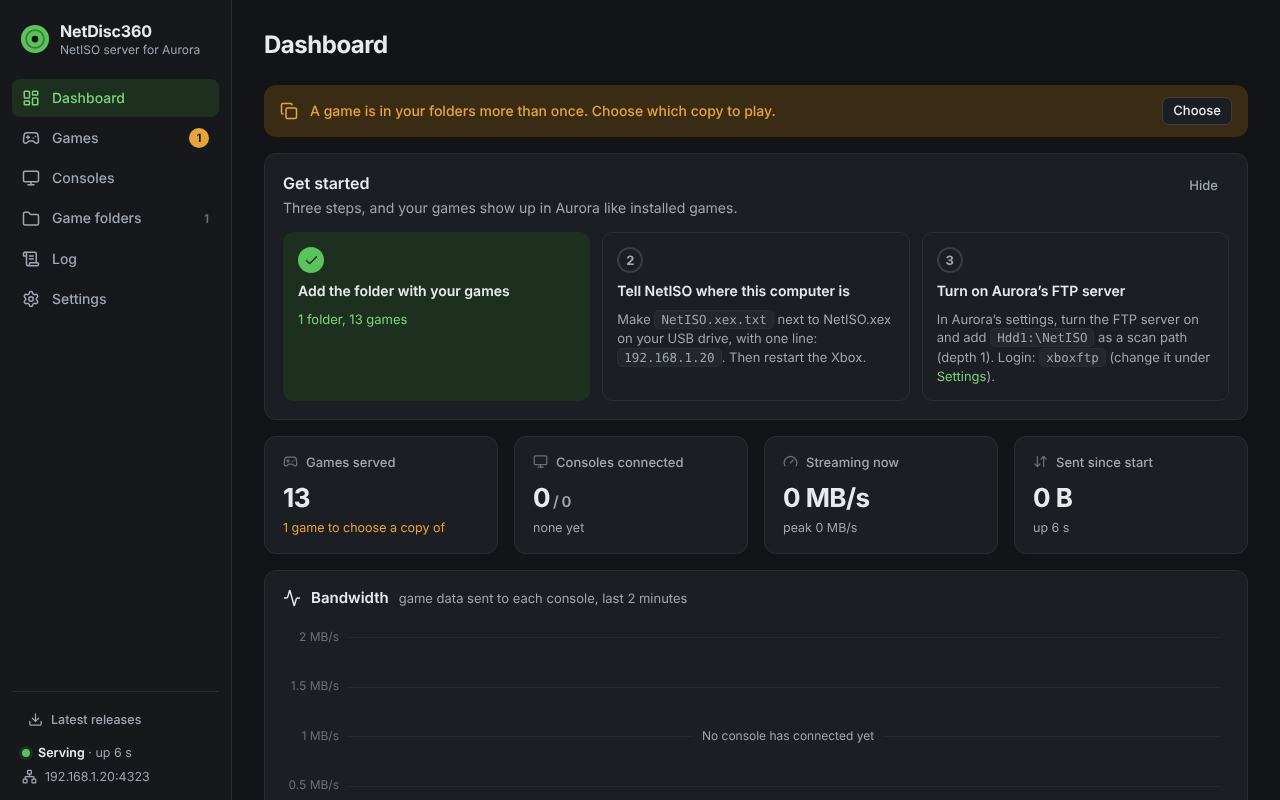
The first run walks you through setup.
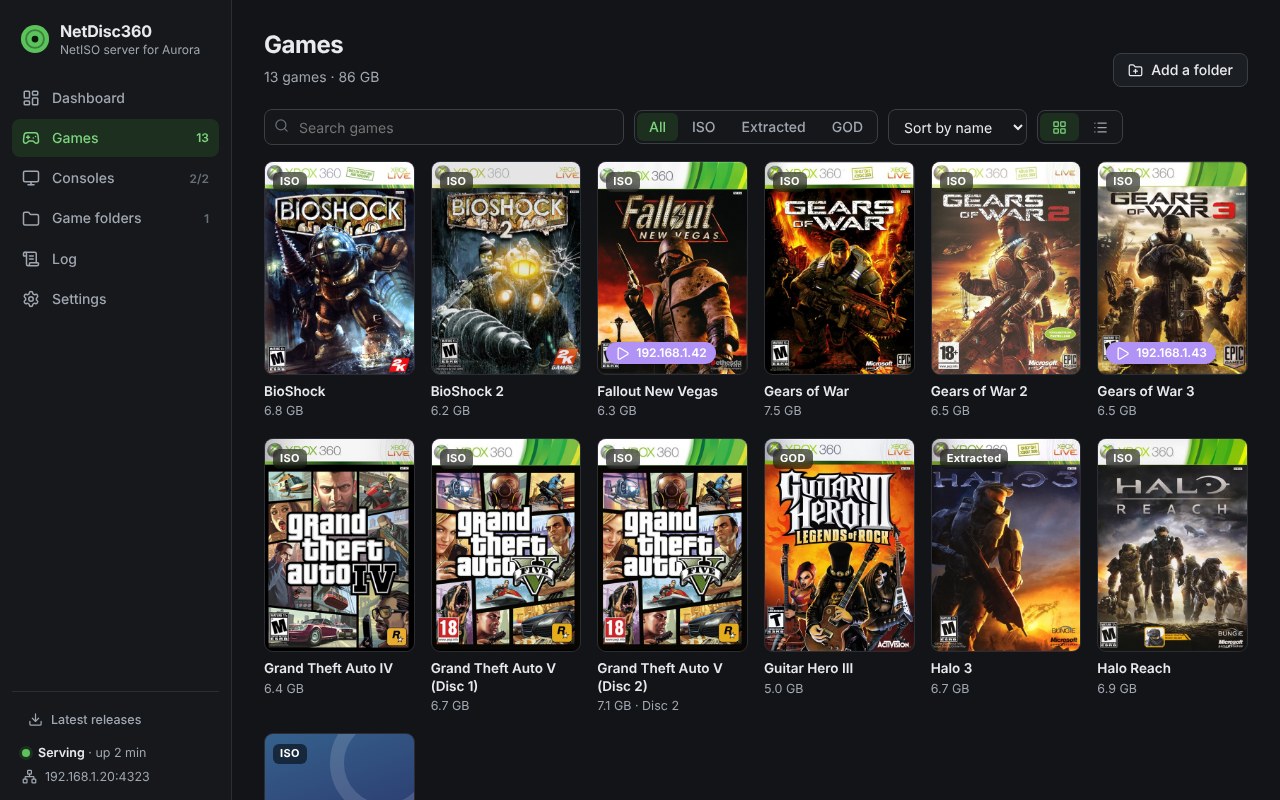
The Games page shows every game, its format, and which console is playing it.
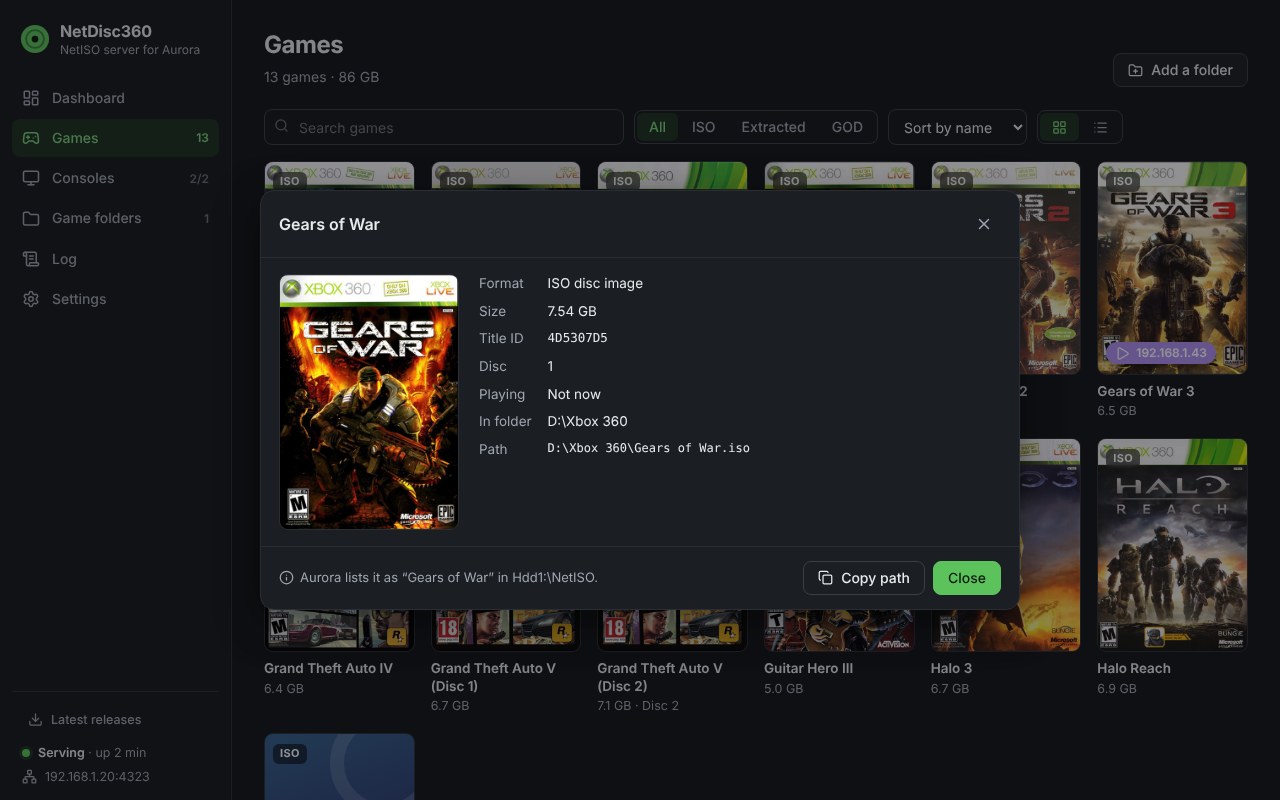
A game’s details.
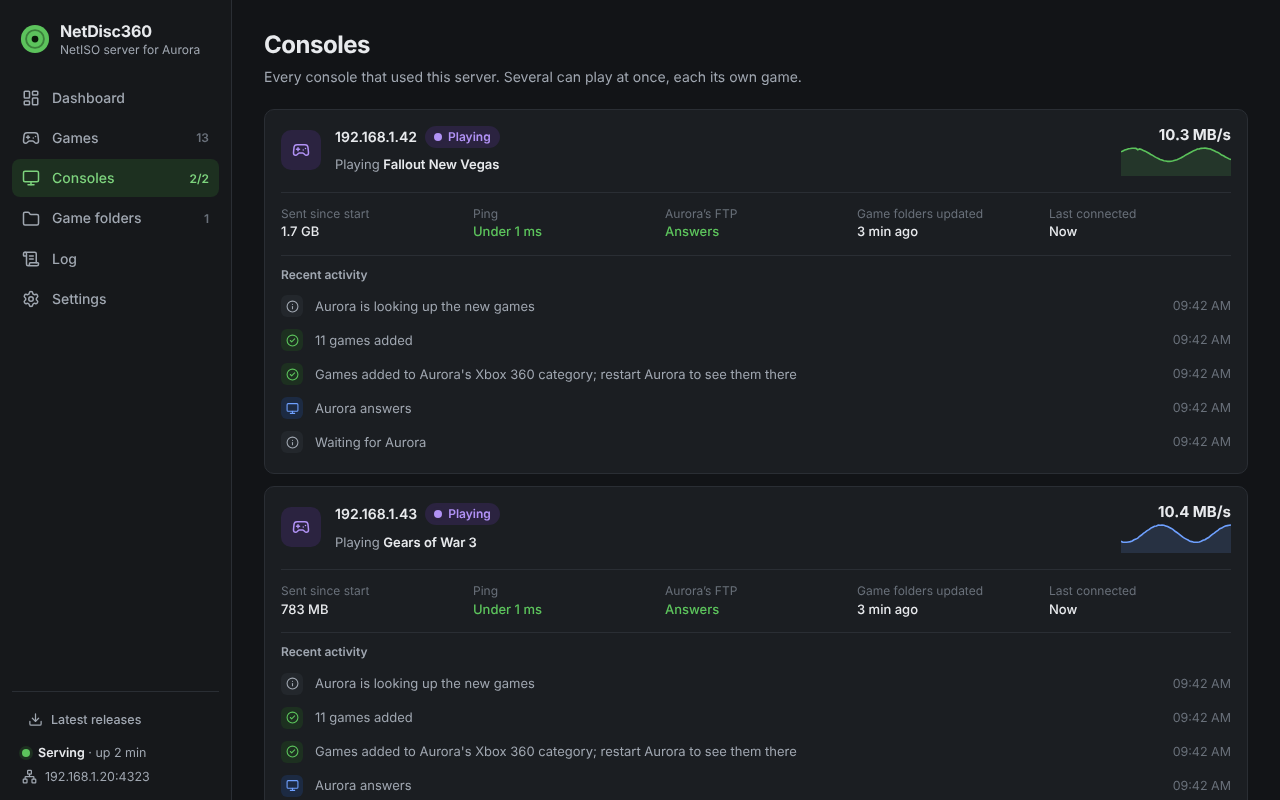
The Consoles page with what each console is doing.
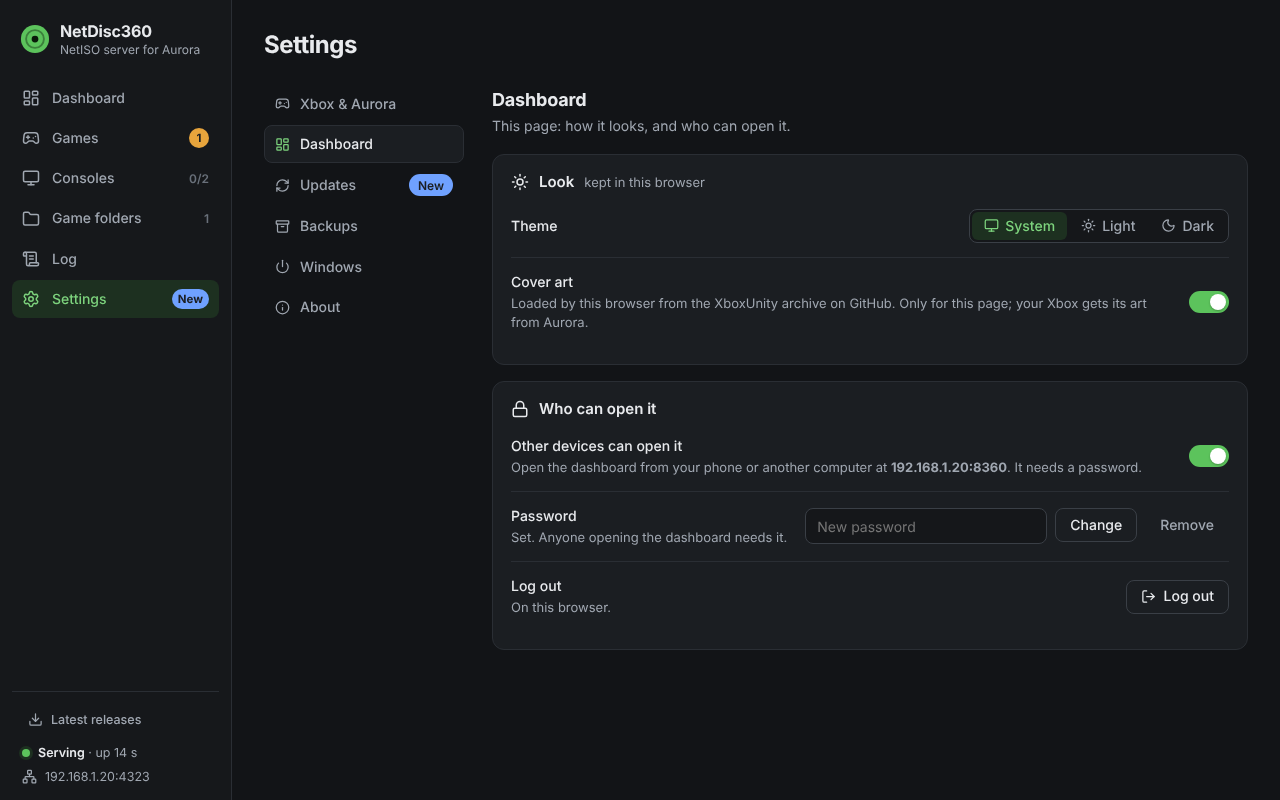
Set a password and let other devices in.
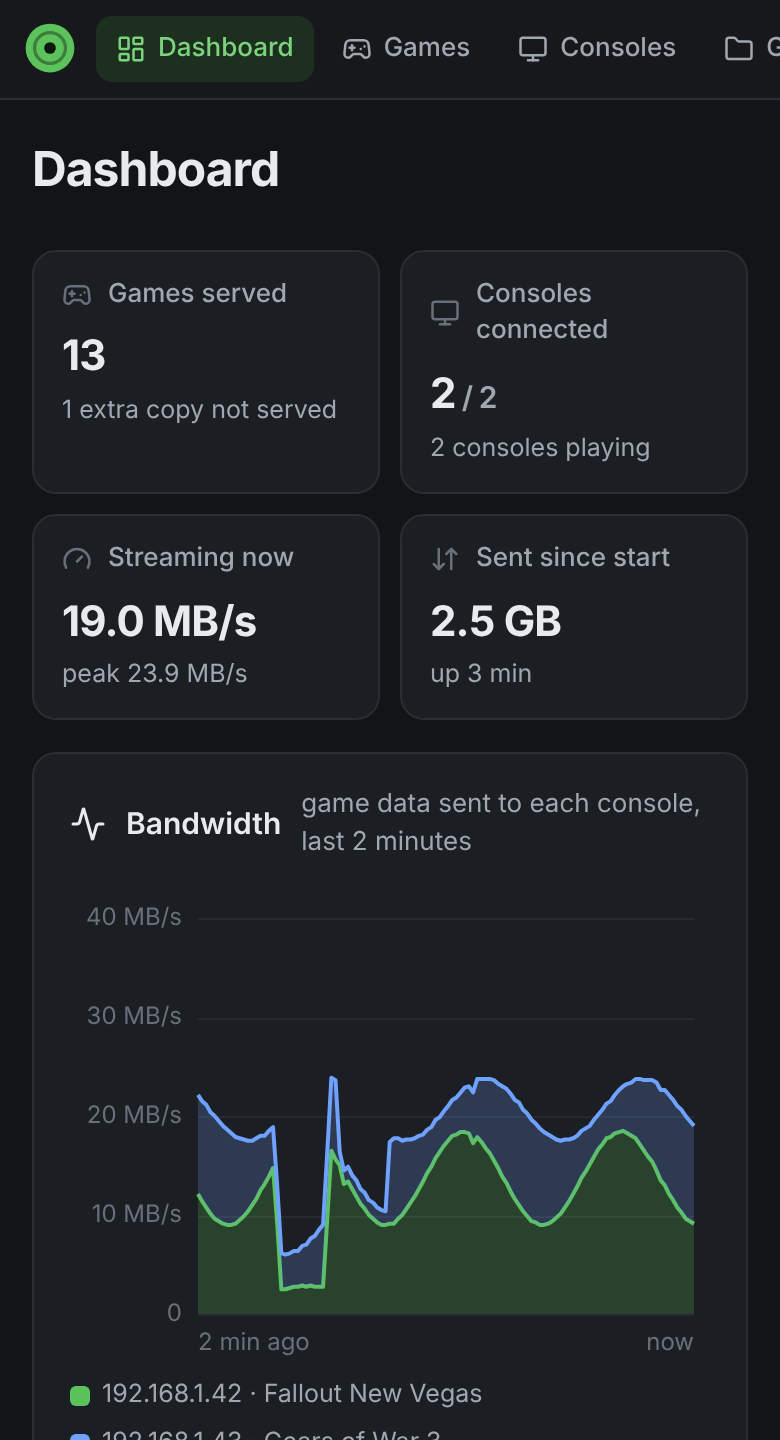
Then check on your games from your phone.
Settings are saved in %APPDATA%\NetDisc360\netdisc.ini, with the FTP password encrypted for your Windows user. The Log page shows what the server does. The exe also still runs from a command prompt with options, with the same dashboard.
With Docker (Linux, a NAS, a Raspberry Pi): see Docker.
3. Turn on the console
Section titled “3. Turn on the console”Turn the console on. Within a minute or two of Aurora starting, the server adds a folder for each game to Hdd1:\NetISO, asks Aurora to scan it, and Aurora fetches the names and cover art. Your games are then in Aurora’s game list next to your installed games, in the Xbox 360 category too. It doesn’t matter whether the PC or the console starts first.
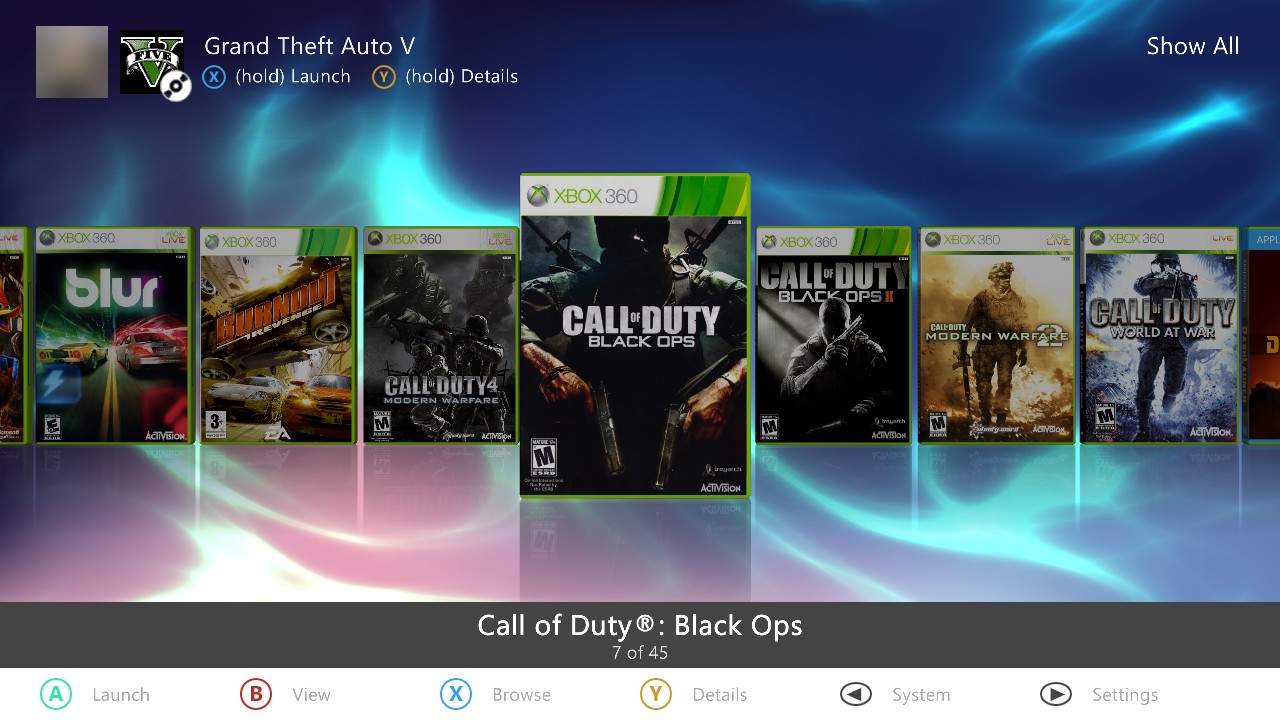
Aurora on the Xbox: games from your PC sit in the game list with their covers, just like installed games.
For more consoles, repeat step 1 on each one (their NetISO.xex.txt holds the same PC address). Each console gets its own game folders and can play a different game at the same time.